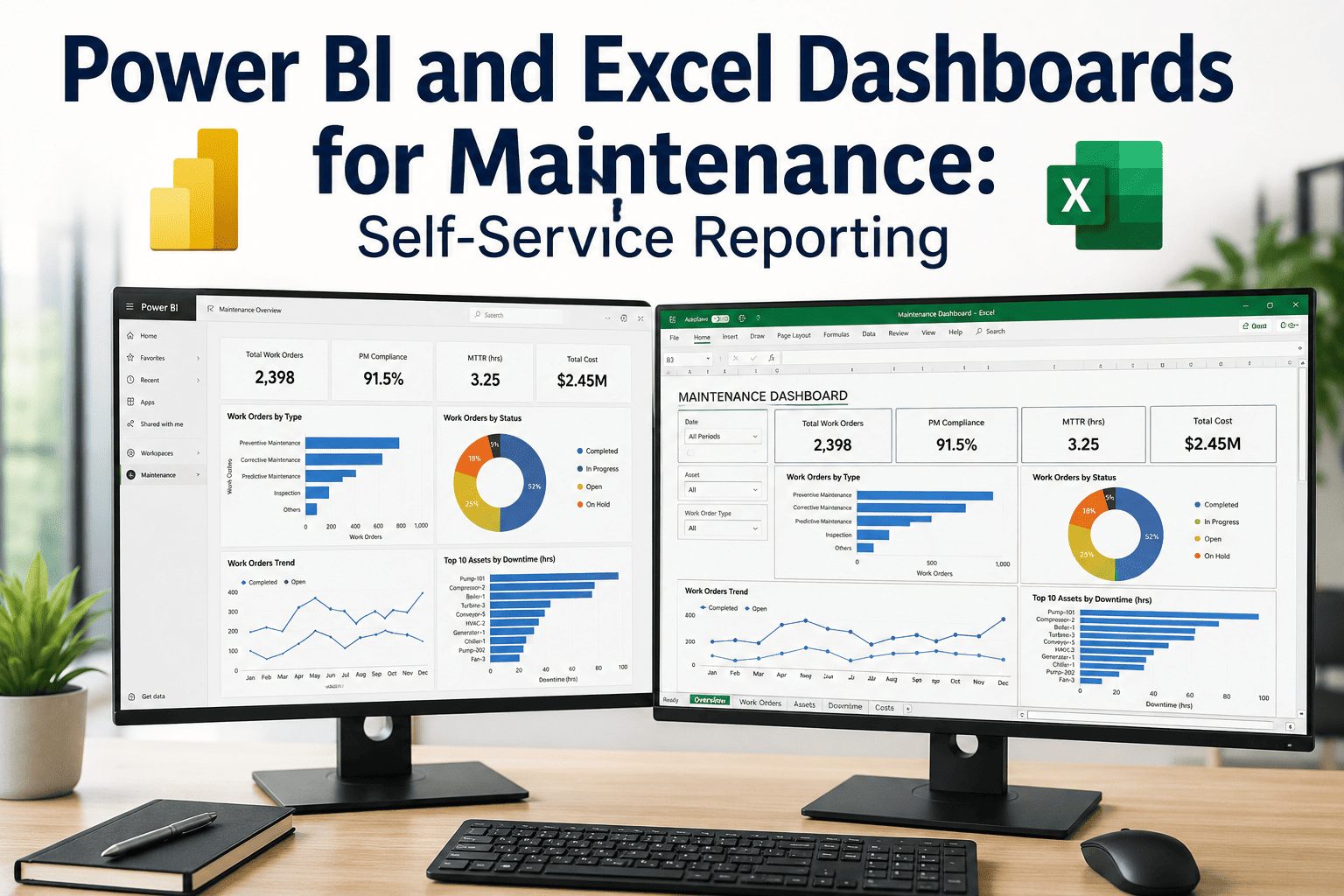
Most maintenance reporting still ends the same way: someone exports a CMMS report to Excel, builds a pivot table, and emails a PDF that is already a day old by the time anyone opens it. Connecting Power BI or Excel directly to your CMMS removes that step entirely — but only if the data model underneath it is built properly. A dashboard wired straight on top of normalized operational tables, with no row-level security and no plan for what happens when a column gets renamed, will look great in the demo and break within a month. A CMMS like OxMaint exposes maintenance data in a structure built to be self-served, not just exported.
Connect Power BI or Excel to Live Maintenance Data
A read-only connector built for self-service reporting — work orders, assets, parts, and cost data, modelled so dashboards don't break on the next schema change.
How Power BI Actually Connects to a CMMS
A CMMS becomes the data source, Power BI or Excel becomes the visualisation layer, and a connector keeps the two in sync. In practice this means a read-only SQL connector, a REST API, or an ODBC driver exposing the underlying work order, asset, parts, and cost tables — no CSV exports, no shared-drive spreadsheets nobody trusts.
Read-Only SQL / REST API
The most common pattern. Power BI Desktop connects like any other database, with no custom middleware or ETL platform required.
ODBC Driver
Useful where a native connector doesn't exist. Requires the 64-bit driver installed on the gateway machine and a System DSN, not a File DSN.
On-Premises Gateway
Required whenever the CMMS database sits behind a firewall, refreshing scheduled Power BI datasets without exposing the database publicly.
The connection itself is usually the easy part. Most teams expect weeks of data engineering — in practice, a working pipeline is configurable in an afternoon if the CMMS exposes clean, queryable tables rather than a raw operational schema. Book a demo to see OxMaint's connector go from zero to a populated Power BI model live.
The Data Model Decision That Determines Everything Else
Importing normalized operational tables directly into Power BI — dozens of joins, third-normal-form structure — is the single most common mistake, and it kills both performance and maintainability. The fix is a star schema: one fact table for work orders or cost transactions, surrounded by dimension tables for assets, technicians, locations, and dates.
Fact Table at the Centre
Work orders, labour hours, or cost lines — the transactional data your KPIs are actually calculated from.
Dimensions Around It
Asset, technician, site, and a dedicated date table — single-direction relationships on clean keys, not bidirectional joins.
Measures, Not Calculated Columns
Define MTTR, MTBF, and PM compliance once in DAX measures, reused across every report instead of recalculated per dashboard.
A well-designed model reduces size by 40-60% and improves query performance by 50-70% compared with a flat table dump. There is no amount of DAX tuning that compensates for a 200-column table with every join still live.
Row-Level Security: Letting Plants See Only Their Own Data
Filter the Dimension, Not the Fact
Apply security roles to dimension tables like Site or Asset, and let well-designed relationships propagate the filter down to the fact table.
Avoid Bidirectional Relationships
The single most common cause of a security leak — a bidirectional join lets a filter flow "up" and bypass the restriction entirely.
Use Dynamic, Not Static Roles
A security mapping table keyed on user email, filtered with USERPRINCIPALNAME(), scales far better than dozens of hand-built static roles.
Test every role with "View as" before publishing, and check it against a real account, not just your own. A misspelled email in the mapping table fails silently in production — the user simply sees no data, with no error to flag the cause. Sign up free to see how OxMaint structures its exported tables to make RLS straightforward rather than a retrofit.
Why Dashboards Break Weekly — And How to Stop It
| Failure Pattern | Root Cause | Fix |
|---|---|---|
| Refresh fails overnight | Underlying column renamed or table restructured upstream | Connect to a stable, versioned export layer, not raw production tables |
| Numbers differ between reports | Each report rebuilds its own KPI logic from scratch | Centralise MTTR, MTBF, and cost measures in one shared semantic model |
| Report runs slowly | Flat, denormalized tables with every relationship bidirectional | Rebuild as a star schema with single-direction relationships |
| Wrong user sees wrong data | RLS filter applied to fact table or bidirectional join leaks upward | Move filters to dimension tables and test with "View as" before publishing |
What Self-Service Reporting Actually Delivers
How OxMaint Supports Self-Service BI
Read-Only Connector
Work orders, assets, parts, labour, and cost data exposed as queryable tables via SQL or REST API, with token-based authentication.
Pre-Built Power BI Templates
Star-schema templates with MTTR, MTBF, OEE, and PM compliance measures already defined, so Analytics Leads aren't starting from a blank model.
Stable Export Schema
A versioned reporting layer that doesn't shift underneath your dashboards every time the underlying product changes.
Scheduled Refresh
Set refresh windows by audience — hourly for operational dashboards, daily for executive views — without manual exports in between.
Give Every Team a Power BI Model That Doesn't Break Weekly
A read-only connector, pre-built templates, and a stable schema — built so Analytics Leads can self-serve without rebuilding the model every month.
Frequently Asked Questions
Should I use DirectQuery or Import mode for CMMS data?
Import mode suits most maintenance dashboards since work order volumes are manageable and refresh schedules of hourly or daily are acceptable. DirectQuery suits near-real-time shop floor views but adds complexity and can fall back unpredictably if a query isn't fully supported.
Why does my Power BI report break every time the CMMS updates?
Reports connected directly to raw operational tables break whenever a column is renamed or a table is restructured upstream. Connecting to a stable, versioned export layer instead of production tables avoids this.
How do I stop different reports showing different numbers for the same KPI?
Define each KPI once as a DAX measure in a centralised semantic model, and have every report and dashboard reference that same measure rather than rebuilding the calculation independently.
What is the most common row-level security mistake?
Applying a bidirectional relationship somewhere in the model, which lets a security filter intended to flow one direction leak upward and expose data it was meant to restrict.
Can Excel be used instead of Power BI for CMMS reporting?
Yes, for smaller teams or simpler reporting needs, Power Query in Excel can connect to the same data sources. Row-level security and scheduled refresh are more limited than in Power BI Service, which matters more as the user base grows.